

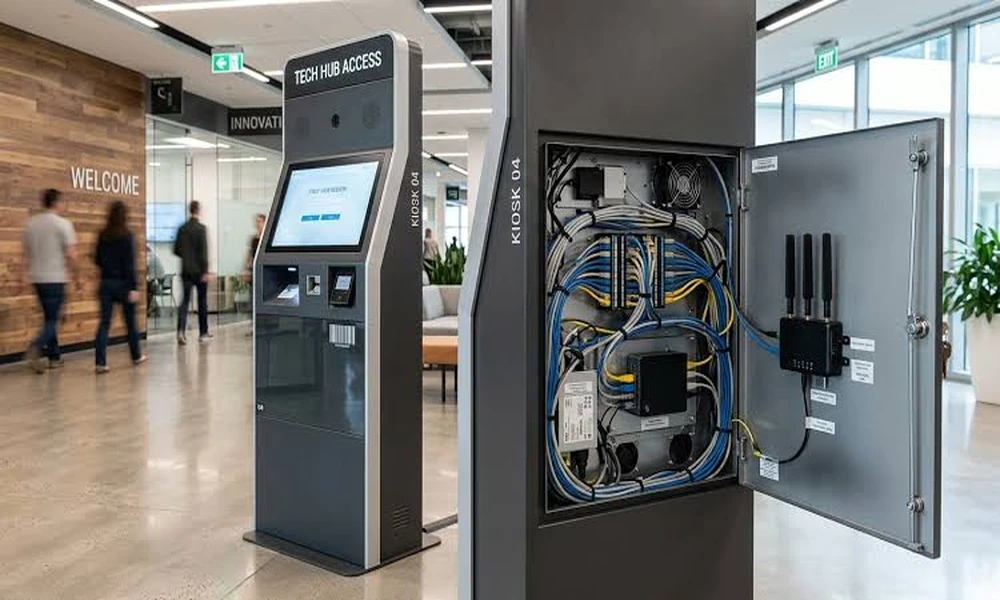
What are kiosk edge devices? They are the small pieces of network hardware inside or near a kiosk that connect it to the internet, protect it and let teams manage it remotely. The main ones are the router, SIM card, antenna, and power control and management platform.
Shoppers only see the touchscreen. Behind it, a few compact devices handle every order, payment and update. When one of them fails, the whole kiosk stops working.
Retail teams searching this topic usually want to know which components matter most and what to check before buying. For an overview of connectivity hardware used in kiosks, see website pages on routers and IoT services.
Why Hardware Choices Matter More Than Most Teams Expect
Many kiosk problems blamed on software actually start with hardware. A cheap router overheats, an antenna sits in the wrong spot or nobody can restart a frozen device remotely. Choosing each part with care prevents most of these issues.
- Match hardware to the environment.
- Plan for remote management from the start.
- Keep firmware up to date.
- Test signal before installing.
The Router
- What it does: It connects the kiosk to the internet through cable, Wi-Fi or cellular.
In real conditions: It runs all day inside a closed cabinet, often in warm spaces. Industrial routers handle heat and constant use better than home models.
Limitation: Better routers cost more upfront, though they usually last longer.
The SIM Card
- What it does: It links a cellular router to a mobile network and sets the data plan.
In real conditions: Coverage varies by location. A SIM that works well in one store may struggle in another. - Limitation: Data limits can lead to extra charges if usage isn’t tracked.
The Antenna
- What it does: It improves cellular reception where indoor signal is weak.
- In real conditions: Moving an antenna just a few metres, or outside a metal cabinet, can make a large difference.
- Limitation: Poor placement cancels out the benefit.
Remote Power Control
- What it does: It lets teams restart a kiosk from anywhere.
- In real conditions: Many freezes clear after a restart. Some tools can reboot a kiosk even when its software has stopped responding.
- Limitation: It can’t fix physical faults like damaged screens.
The Management Platform
- What it does: It shows connection status, signal strength and data use for every kiosk in one place.
- In real conditions: Alerts reach support teams within minutes of a problem. Many teams see website examples of how monitoring and remote reboot work together.
- Limitation: Alerts only help if someone acts on them.
Component Summary
| Component | Main Job | Common Failure | What to Check |
|---|---|---|---|
| Router | Connects the kiosk | Overheating, old firmware | Industrial build, remote management |
| SIM card | Mobile network access | Weak coverage, data limits | Local coverage, pooled plans |
| Antenna | Boosts signal | Poor placement | Position outside metal cabinets |
| Power control | Restarts the kiosk | No remote option | Works even when software freezes |
| Management platform | Shows device status | Alerts ignored | Real-time alerts, clear reports |
A Simple Hardware Plan
- Survey each kiosk location.
- Choose routers rated for the site.
- Test signal and add antennas where needed.
- Set up remote power control.
- Connect every kiosk to a monitoring platform.
- Schedule firmware updates.
Where Teams Go Wrong
Common mistakes include using home routers, hiding antennas inside metal cabinets and skipping firmware updates. Store refits or new equipment can also affect signal over time, so a setup that once worked may need adjusting.
Frequently Asked Questions
- Do kiosks need industrial routers? For busy or warm locations, they’re usually worth it.
- Can one router serve several kiosks? Yes, if they’re close together.
- How often should firmware be updated? Whenever security updates are released.
Kiosk reliability depends on parts most people never see. Choose hardware that fits the site, keep it updated and review performance regularly. Consistent maintenance protects every transaction the screen handles.